I got sick of subscription PDF tools, so I built my own
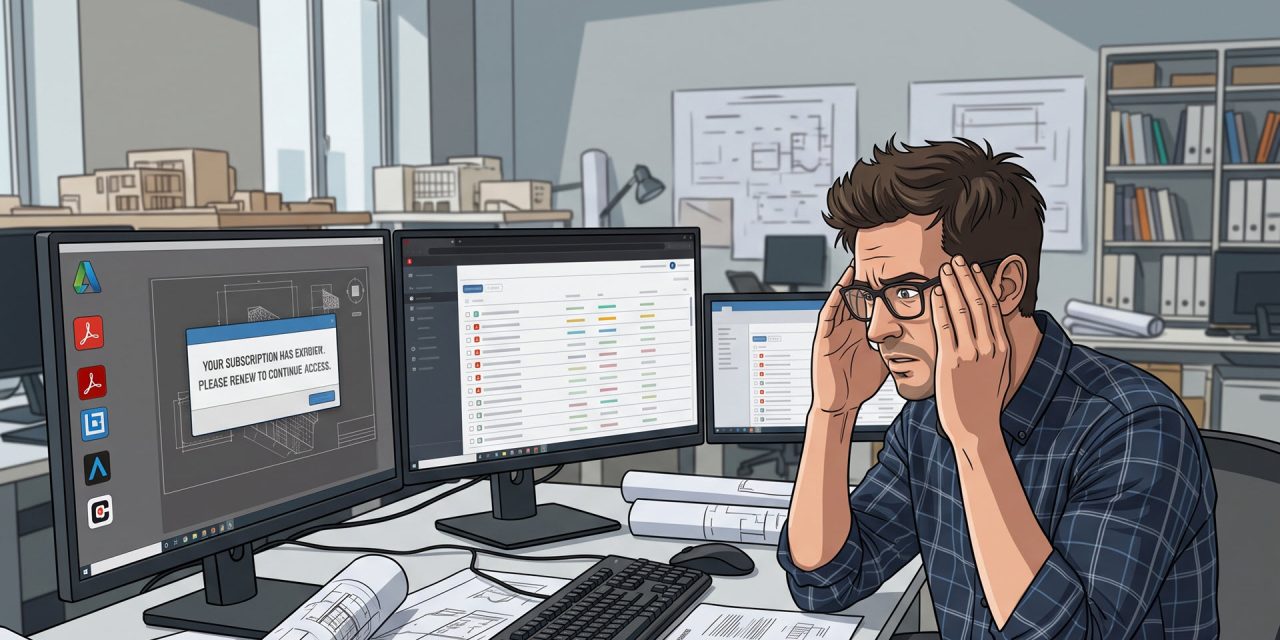
An engineer’s PDF folder is drawings, quotes, RFQs, and supplier paperwork, not contracts and forms. Most PDF tools don’t know that, so working with any of it still means a monthly fee, an account, or your file routed through someone else’s server, just to fix one line of text on a quote or read a scanned invoice from a supplier still running a fax machine in 2026.
So I built PDF Editor. Free, open source, runs entirely on your own machine. Yesterday, v0.1.3 went out as the first public release.
Why it matters if half your PDFs are drawings
Most PDF tools are built around contracts and invoices. Mine started with a different set of documents: drawings, quotes, RFQs, and the odd scanned supplier invoice that never had real text in it.
Here’s the bit that’ll be familiar if you’ve ever exported a drawing out of Fusion or Inventor and then tried to search it. The title block text is often vector outlines, not real text, so there’s nothing for a normal PDF viewer to find or copy. PDF Editor falls back to OCR whenever a page has no genuine text layer, whether that’s a scan or vector-outlined text, and reads it into searchable, extractable text on demand. The sample pack that ships with it even includes a CAD drawing file to try that exact thing on.

It also runs fully offline. Nothing gets uploaded anywhere, which matters more than people think when the PDF sitting in your edit queue is a customer’s drawing under NDA. And it installs per user with no admin prompt, which matters even more on a locked-down shop floor PC where you’re not the one holding the local admin rights.
What’s actually in it
The basics are all there: tabbed viewing, zoom, thumbnails, printing with the usual options. Merge, split, reorder, rotate, delete and insert pages from another file.
The bit I actually care about is the editing. Most “free” PDF tools give you a highlighter and call it editing. This one lets you click actual text on the page and change it in place, down to a single character if all you want to touch is the colour or weight of one word. Same deal with images: click, drag to move, grab a corner to resize, delete to remove.
Undo runs on whole-document snapshots rather than diffing every change, so it holds up even after a long run of edits. Every document opens read-only until you flip Edit mode on with Ctrl+E, and the status bar always shows which mode you’re in, so you can’t accidentally start editing something you only meant to read.

What it won’t do, on purpose: form filling, digital signatures, full text reflow. It’s not trying to be Acrobat. Keep whatever you’ve got for those jobs and use this for everything else.
Under the bonnet
If you’re the sort who scripts around your own CAD or CAM workflow, this bit’s for you. The app splits into pdfcore, a headless engine that’s pure Python and PyMuPDF with no Qt anywhere near it, and pdfapp, a thin PySide6 shell on top that just renders. The engine runs fully under pytest with no GUI involved, and because it’s plain Python underneath, nothing stops you importing pdfcore straight into your own tools instead of running the app at all.
The licence is AGPL-3.0. PyMuPDF is AGPL, so anything built on top of it inherits that automatically, no fork or redistribution gets to opt out. For any binary released from this repo, the source you’re owed under that licence is just… this repo. If you build your own internal tools on top of other people’s open source, and I do, that chain is worth understanding properly rather than skimming past. OCR runs on a bundled Tesseract, the app’s packaged with PyInstaller, and the Windows installer’s built with Inno Setup.
Getting it running
Grab pdf-editor-setup-0.1.3.exe off the releases page and run it. No admin prompt, it installs to your own user folder and drops a Start Menu shortcut.
It’s unsigned, so SmartScreen will throw up “Windows protected your PC” the first time. Click More info, then Run anyway. One-time, mildly annoying, and the honest cost of not paying for a code-signing certificate on a free solo release.
Windows blocks apps from setting themselves as the default PDF handler, and fair enough, that’s a deliberate anti-hijacking rule. So tick the box on the installer’s last screen, or set it yourself under Settings, Apps, Default apps. It’s single-instance too: if it’s already open, the next PDF just lands as a new tab instead of opening a second copy.
This is a first public release of a 0.1.x build, so there will be rough edges. If you hit one, the Issues tab is right there, and I’d genuinely like to know about it.