I have been a fan of the Shaft Generator in Autodesk Inventor’s Design Accelerator toolset for years. I was using the calculations and graphing to evaluate a couple of drive shafts this weekend. Following are a few screenshots of the really cool features in this tool.
Design Tab
I’ve discussed this portion of the tool in the past, and most of us have seen the Design Tab at some point in time. However, just in case you’ve never seen the tool, this is the tab where the sections are added and specified.
Each shaft section can be defined along with reliefs, chamfers, through holes, keyways, and on and on. I like these because I am always checking a chart for the appropriate sized retaining ring recess, and these tools calculate them for you.
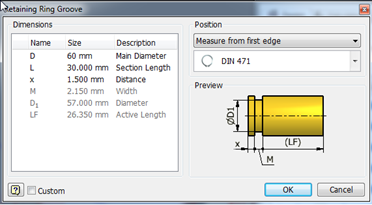 Did you know that you can pick the appropriate retaining ring recess and margins from a specific standard? Here I picked the DIN 471 standard that I will specify my snap ring from.
Calculations Tab
This tab allows various forces and supports to be applied to the shaft. An accurately scaled representation is displayed along with start middle and end indexes, where loads and supports may be referenced. Like many other tools in the Design Accelerator arsenal, the resulting forces and calculations appear to the right, and warnings and messages at the bottom.

In this example I’ve added supports at my bearing journals, and torque loads at the input and output sections of the shaft. Additionally, the vehicle weight is applied in the center section as well.
Moment = 135 N m
Supports = Double Tapered Roller Bearings, 100 mm OD, 63 mm wide.
 Radial Force = 6000 N
Once entered, the Calculate button near the bottom of the dialog will fill the results window immediately.
While adding the supports, you can pick your bearing types from a list populated with what is likely the Content Center, or a spreadsheet in the design data folder.
Graphs Tab
This tab groups all the results into a graphic form to convey the information of what stresses are playing in each region of the shaft. Shear force,bending and torsional stresses, deflection, etc. It’s all in there. A really great feature when you’re just looking to rough size the shafts is the Ideal Diameter graph. This displays the diameter that would support the loads as configured, based on a safety factor (of which I am not sure). Here my input shaft is dead on, and the support and spline sections are all slightly large. (which is fine because I may bore the shaft to reduce the mass.

3D Visualization on the Model
You may not have realized that Inventor allow users to visualize and adjust the load and support features in the Graphics View area on the model itself. I was slow to realize this as I have always been face first in the dialogs and never checked out the model.