I do love me some analysis. Even when it comes to Civil work, I’m just tuned that way.
I was reviewing some parking grades for a company that wanted their demolition and paving quantities accounted. Unfortunately, the manner in which they staged the work was not well established, and data locations were chaotic at best. I started with an abundant list of problems, but have almost all of them sorted. Now that we are at the finite stage of little oversights, we can use some surface analysis visualization to help nail these areas down.
Surfaces and Point Groups
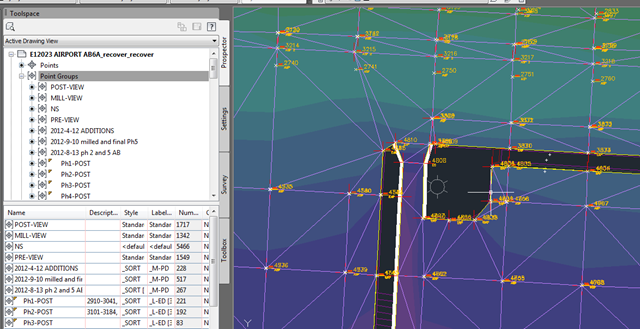
The following image depicts a few things I have done to make the troubleshooting a bit less painful.
- Points used in the surfacing are grouped together for visualization, with a ‘No Show’ group below to easily push point visualization by moving the surface point sets above and below it.
- Fill Surface – set to a “_SURFACES-POST” layer with a specific analysis styles set, triangles on.
This is how I go though and determine what data is misplaced or mis-organized. There is an easier way to determine where the problems are.
I know there is a problem in this area. The fill is far too deep (0.5’), which indicates that someone located a curb top. How?
Volume Surface Analysis with Datum
Underneath this arrangement is the respective volume surface for the final fill is thawed. When I select a crossing window over these surfaces, the volume analysis display bleeds through.

What we used is an Elevation Analysis style, with a TEMPORARY OVERRIDE, for a range set to ‘Range Interval with Datum’ option. This is done directly through the Surface Properties, not by way of style.
- Interval: 0.1’
- Datum Elevation: 0.4’
Once these are set, hit the re-analyze button, and a legend of the analysis results will appear in the bottom window. In our example, I can see that there is fill set to as much as 0.5’ which is absolutely incorrect.
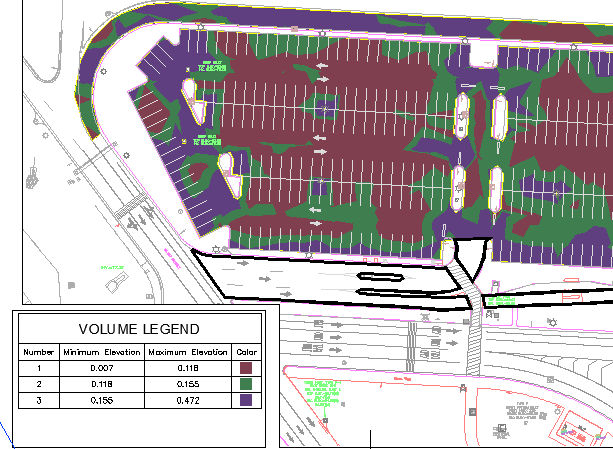
Hit apply, and the analysis will display across the volume surface. I chose to keep multiple surfaces up while troubleshooting, but you can simply freeze all the other surfaces, and leave the analysis volume thawed.
Now we can see the bright green highlight on the worst region. This makes the troubleshooting process so much easier. When I am done and all the green is gone, I will revert the analysis legend to that of the style. This is why I mentioned that the analysis settings here are a temporary state.
The button with the ‘X’ is the ‘Revert to Surface Style’ option, and will remove this datum analysis, for a pastel colored volume range set that I already have attached to this surface as a style. I push that button, and the display reverts to my final output.